
Docs
[In]structions.
Struction is the workspace for understanding a project and building your scopes of work, RFIs, risks, and quantities — fast. This guide walks you through it, surface by surface. You don’t need to know anything about software to follow along.
MapsNavigate trades, documents, and the 3D model.PromptingAsk your project anything, grounded in your docs.UploadBring in drawings, specs, and bid docs.Quantity TakeoffMeasurements tied straight to the drawings.CreationAuto-draft a trade-level scope of work.RFIsTrack open questions against the source sheet.
The five things to remember
Everything in Struction comes back to these five ideas. Remember just this much and you’ll be fine:
- Your documents are here. Every drawing, spec, and bid document you upload is the source information for the maps.
- Your scopes come from your drawings and specs. Struction reads your documents and writes a first-draft scope of work for each trade.
- Every output has a source. Any item, quantity, or risk can be traced back to the exact page it came from.
- And every source is connected. Scopes, drawings, specs, and issues are linked by their relationships, so you can always see what affects what.
- Chat is your partner. Anything you can do by clicking, you can also ask chat to do.
Quickstart: your first session
New to Struction? Here’s the fastest path from a fresh account to a scoped, bid-ready project. Most teams are through it in one sitting.
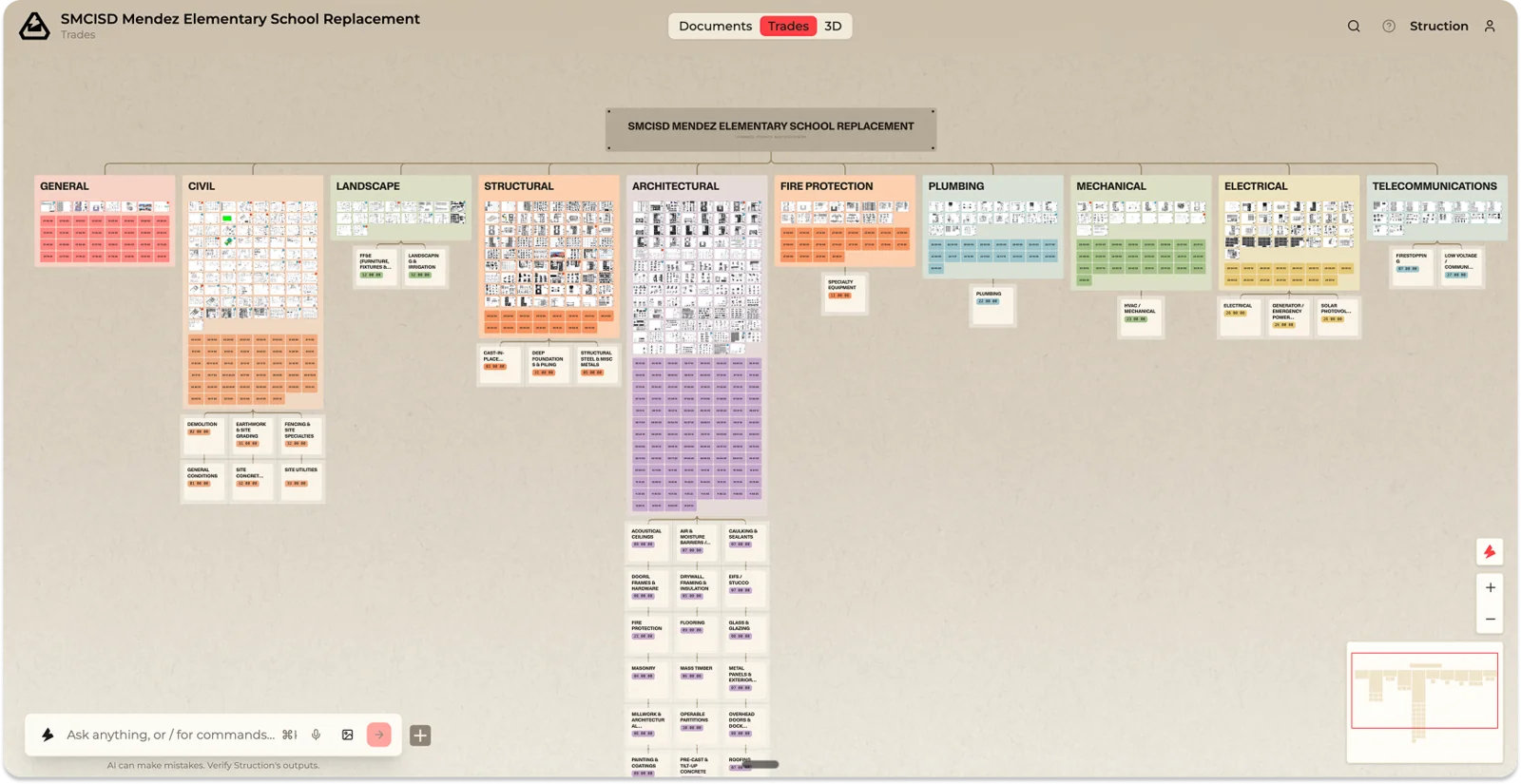
- Create or open a project. Upload your drawings, specs, bid documents, and schedules. Struction reads them and labels each one.
- Let it process. Struction studies the documents, organizes them by discipline, and writes a first-draft scope of work for each trade — about an hour for a typical project.
- Land on the Trade Map. Your home base: a map of the whole project organized by who does the work.
- Zoom in to orient. Zoom out to see every discipline and its scopes; zoom in to see individual sheets, scopes, and the chips that mark risks and RFIs. Double-click any element to make it full-screen.
- Open a Scope of Work. Review its items and check the Sources on a few — every item points back to the drawing or spec page it came from. Click “Verify?” to approve an AI-generated item.
- Ask chat a question. Try something specific, like “What are the biggest risks in the Mechanical scope?”
- Look at an issue. Click a risk or RFI chip to understand it and decide what to do.
- Export when ready. When your scopes look right, export them to Excel to send to subcontractors or attach to your ITBs.

Give Struction a swing, completely free.
Upload one project free when you sign up with a work email.
Book a demoWe won’t train on your project data.