
Maps
Struction shows your project as a map you zoom and pan, like Google Maps. Instead of scrolling through PDFs, you zoom in to reveal more detail and zoom out to see the whole job.
The same project data is shown three ways.
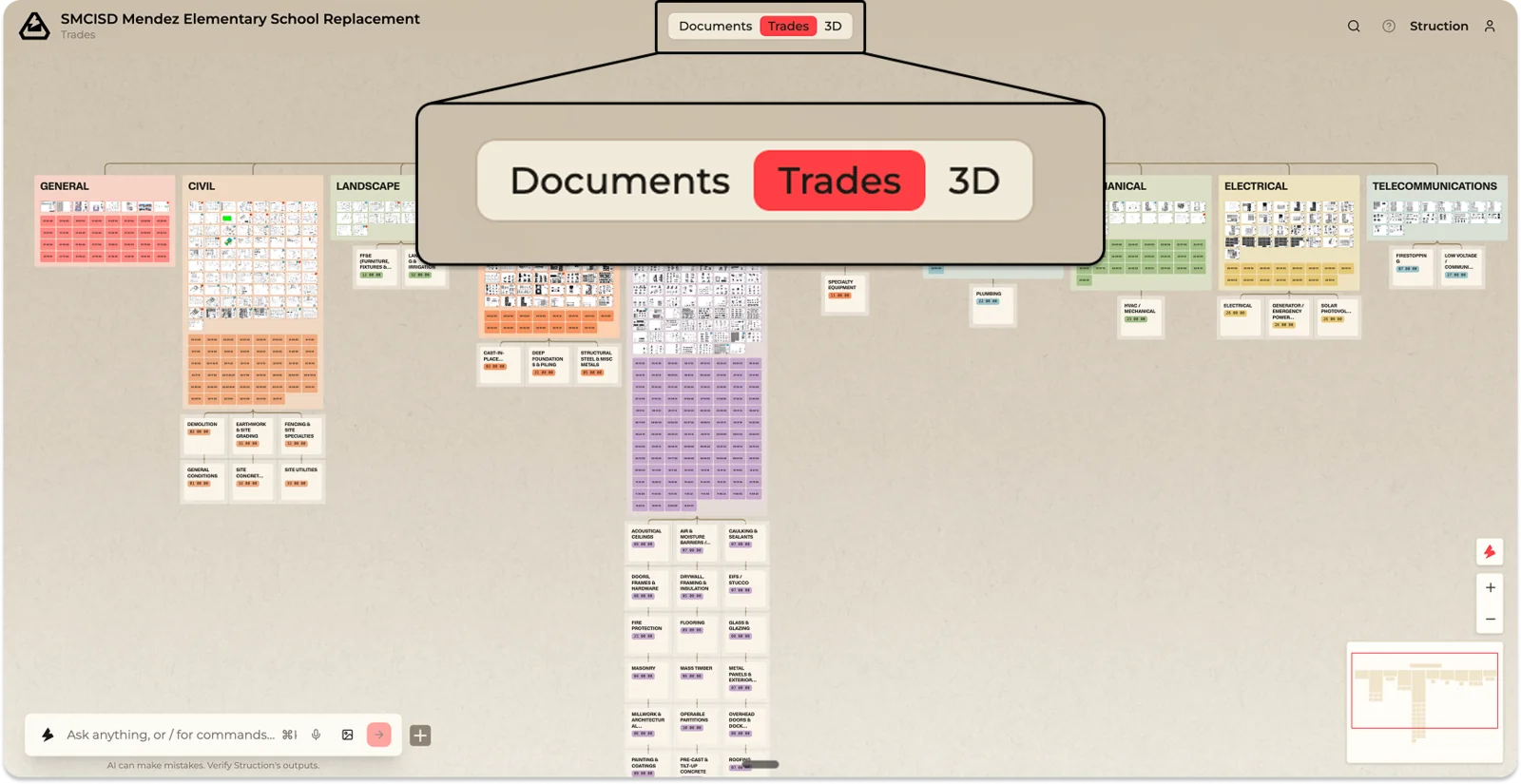
Trade Map — your home base
The Trade Map organizes the project by discipline — the way the architect and engineers split up the work. Each discipline (Mechanical, Electrical, Plumbing, Architectural, Structural, and so on) is a cluster holding all of its drawing sheets and related spec sections. Below the clusters sit the Scopes of Work derived from them, with connection lines showing which sheets fed which scope.
This is the view you'll live in. It answers: What work needs to happen, who does it, and where is it drawn or specified?
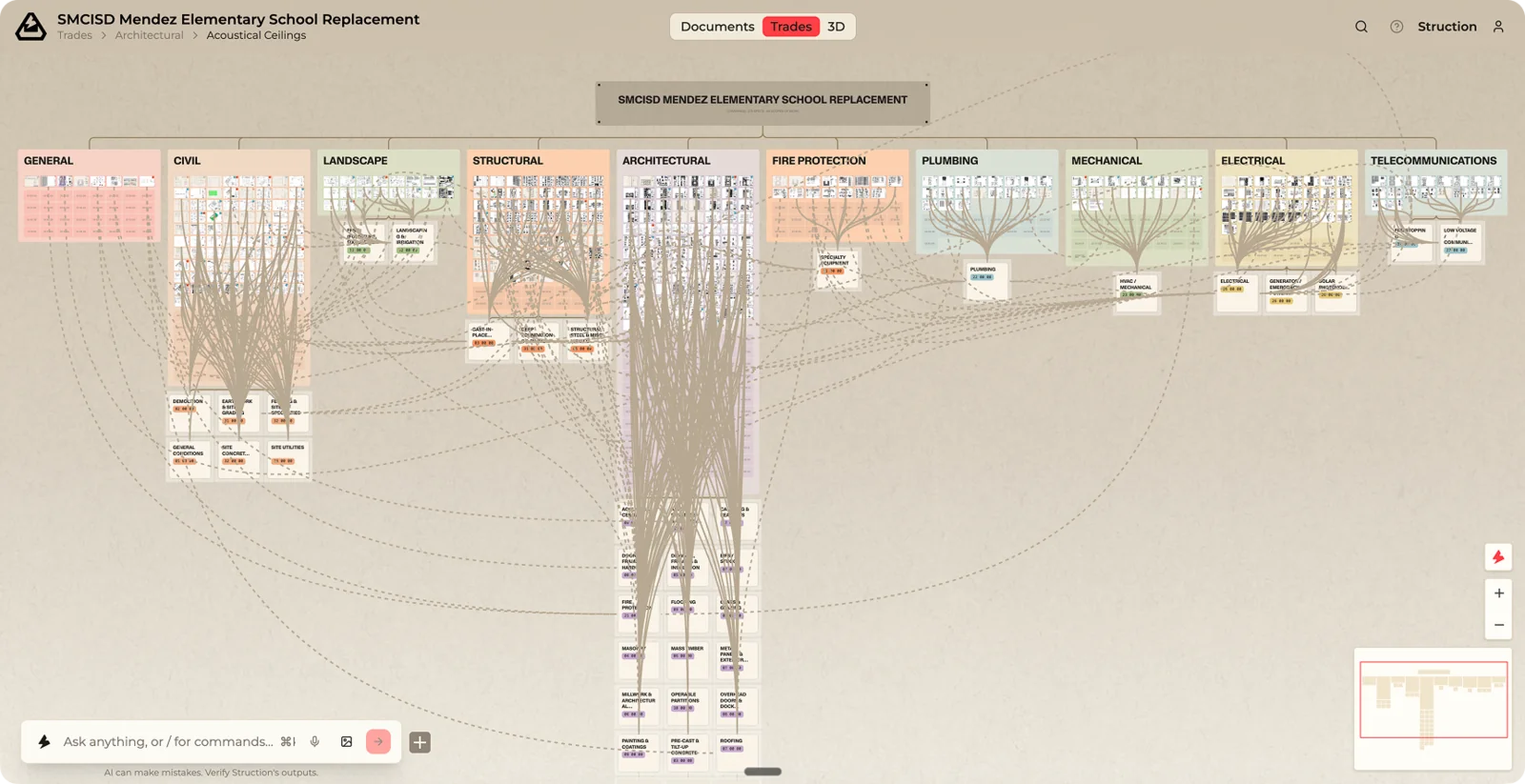
Workflow example — You want to know how big the electrical scope really is. On the Trade Map you can see at a glance that Electrical has far more sheets than Plumbing, carries three risks, and feeds four separate scopes — so you know how to prioritize your team's time before bid day.
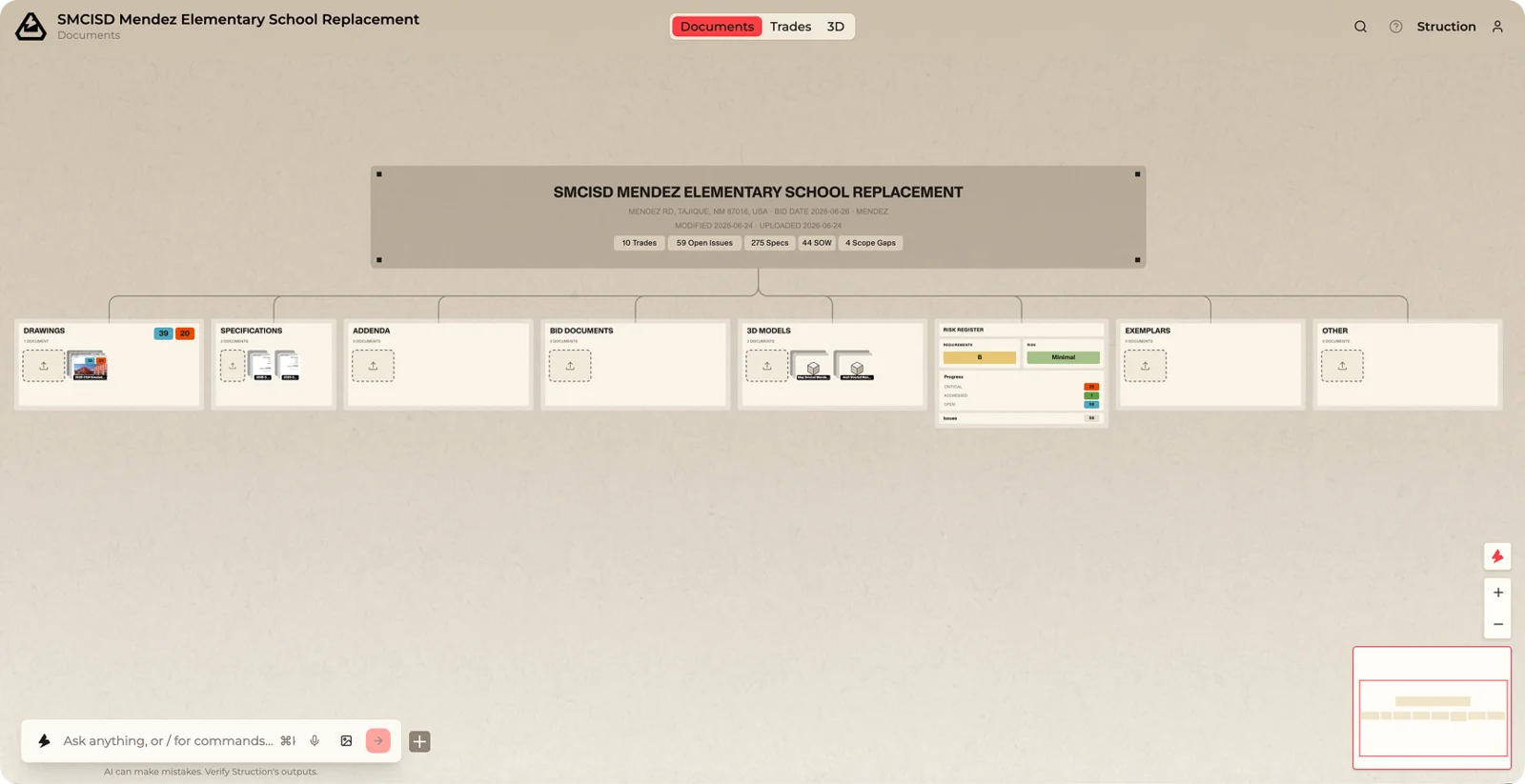
Document Map — your documents by type
The Document Map shows the same project organized by document type: Drawings, Specifications, Bid Documents, Schedules, your Scopes of Work, the Risk Register, and more. It works like a familiar file tree, so you always have somewhere comfortable to start.
Use it when you're thinking in terms of documents — What did the architect actually send us, and which drawing package did I upload?
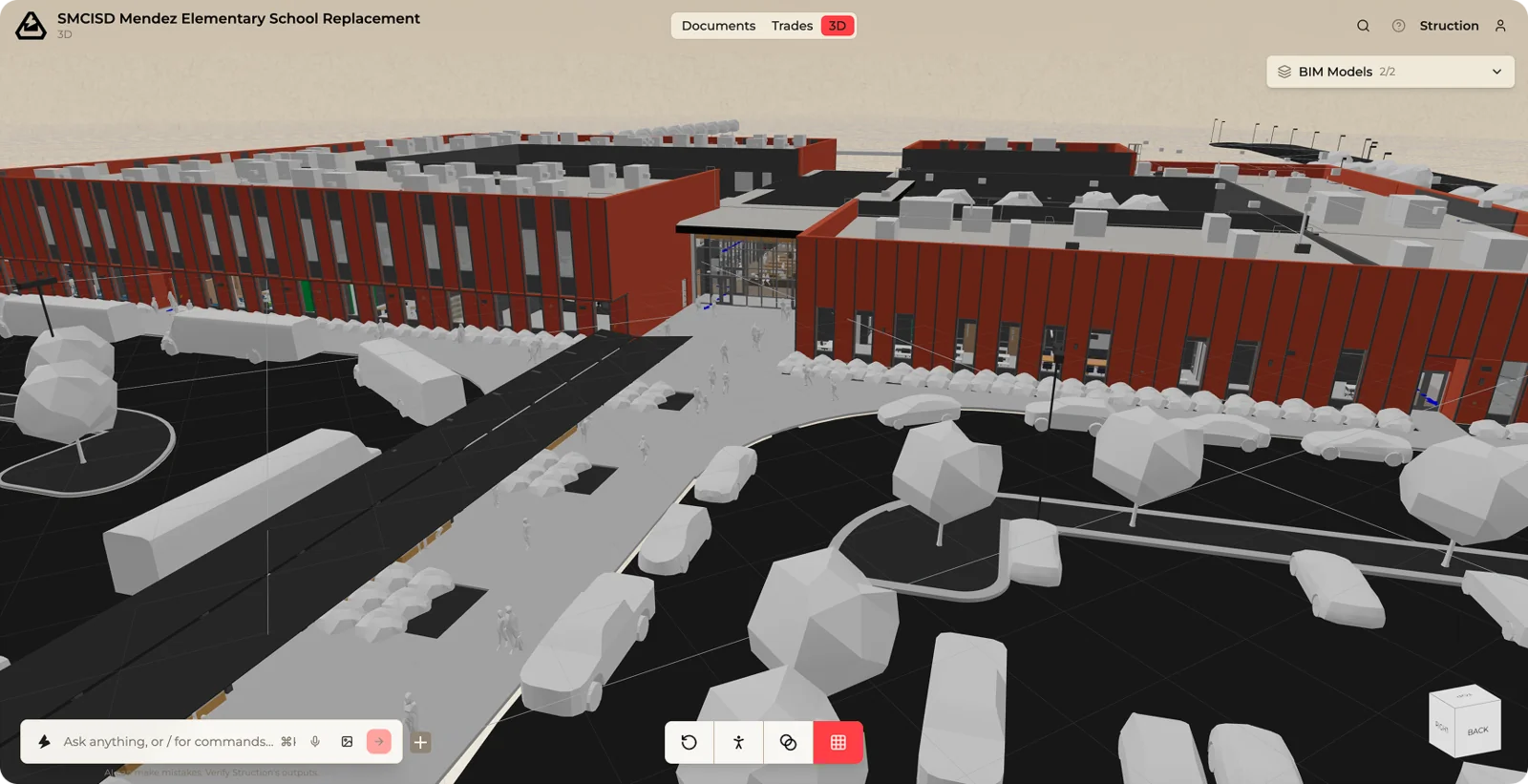
3D Map
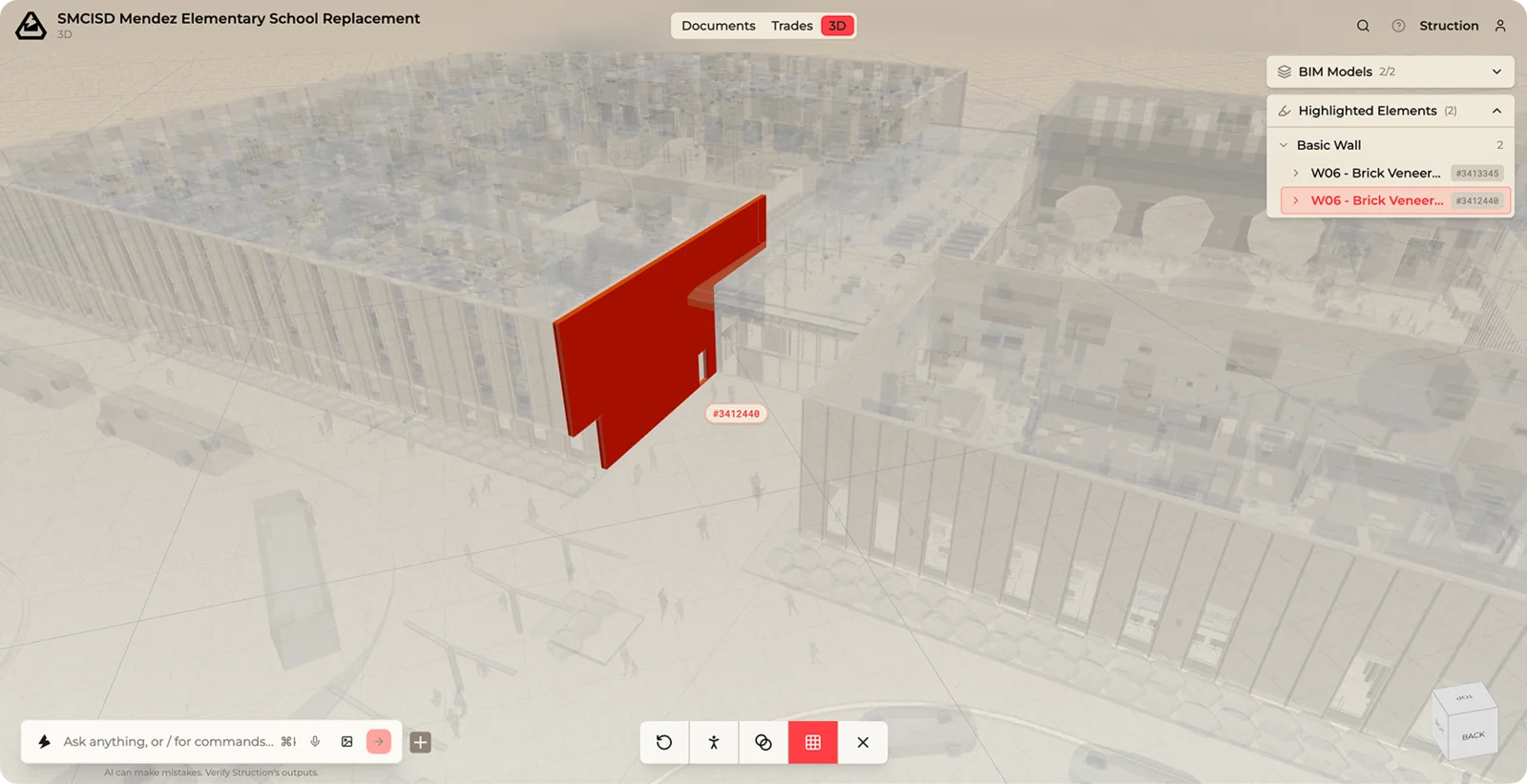
If you upload a BIM model (an IFC or RVT file), Struction unlocks a 3D Map where you can drive through the model, click objects to see their attributes, and ask chat about anything you're looking at. You can even drive through it with a game controller.
Good to know — The 3D Map only appears when a BIM model has been uploaded; Struction does not build one from your drawings. In this release it's mainly for finding items in space and answering questions in chat. No BIM model means no 3D tab — that's normal.
Switching between maps
The three maps show the same underlying data, so you never lose your place:
- Use the toggle in the top-center.
- Right-click any item and choose View in Trade Map or View in Document Map to jump to the same item in the other view.
- Struction remembers where you were looking in each map, even between sessions — so you pick up exactly where you left off.